Pipeline Management
The Easy GitLab plugin provides a convenient way to manage your GitLab pipelines directly within IntelliJ. This section will guide you through the various pipeline-related features offered by the plugin.
Accessing the Pipeline View
1. Open the Easy Gitlab Tool Window: In IntelliJ, open the "Easy Gitlab" tool window. You can find it via .
Select the Pipeline Tab: Click on the "Pipeline" tab within the Easy Gitlab tool window.
Viewing Pipelines
The Pipeline tab displays a list of pipelines for your project, along with their current status.
Pipeline Status
The status of each pipeline is indicated by a visual icon (e.g., success, failed, running, pending).
Pipeline Details
Each pipeline entry shows relevant information, such as: * Pipeline ID * Branch * Commit message * Triggering user * Status * Last update * Duration
Sorting
You can sort the pipeline table by clicking on the column headers. See the Sorting Data in Tables section for more details.
Filtering
You can filter the pipeline by user, if the option is enabled in the settings. See the Configuration section for more details.
Refresh
You can refresh the pipeline list by clicking on the refresh icon in the toolbar.
Pipeline Actions
The plugin provides several actions you can perform on pipelines:
Triggering a Pipeline
Open the Pipeline Tab:** Navigate to the "Pipeline" tab.
Click the "Trigger Pipeline" icon (play icon) in the toolbar.
Alternatively, you can use the shortcut: Ctrl+Alt+P.
The pipeline will be triggered on the selected branch.
Retrying a Pipeline
In the Pipeline tab, select the pipeline you want to retry.
Click the "Retry Pipeline" icon (restart icon) in the toolbar.
Canceling a Pipeline
In the Pipeline tab, select the pipeline you want to cancel.
Click the "Cancel Pipeline" icon (suspend icon) in the toolbar.
Opening a Pipeline in the Browser
In the Pipeline tab, select the pipeline you want to view in the browser.
Click the "Open Pipeline in Browser" icon (web icon) in the toolbar.
The pipeline will be opened in the browser.
Job Management
Each pipeline consists of one or more jobs. The plugin allows you to manage individual jobs within a pipeline.
Accessing Jobs
In the Pipeline tab, select the pipeline whose jobs you want to view.
The jobs for the selected pipeline will be displayed in a separate table below the pipeline list.
Job Actions
The plugin provides several actions you can perform on jobs:
Viewing Job Logs
Select a Job:** In the job table, select the job whose logs you want to view.
Click the Show Log Icon:** Click the "Show Job Log" icon (text file icon) in the toolbar.
The job log will be displayed:** The job log will be displayed in a new tab.
Triggering a Job
In the job table, select the job you want to trigger.
Click the "Trigger Job" icon (play icon) in the toolbar.
Alternatively, you can use the shortcut: Ctrl+Alt+J.
The job will be triggered.
Retrying a Job
In the job table, select the job you want to retry.
Click the "Retry Job" icon (restart icon) in the toolbar.
The job will be retried.
Canceling a Job
In the job table, select the job you want to cancel.
Click the "Cancel Job" icon (suspend icon) in the toolbar.
The job will be canceled.
Opening a Job in the Browser
In the job table, select the job you want to view in the browser.
Click the "Open Job in Browser" icon (web icon) in the toolbar.
The job will be opened in the browser.
Downloading Job Artifacts
In the job table, select the job whose artifacts you want to download.
Click the "Download Artifacts" icon (download icon) in the toolbar.
The artifacts will be downloaded.
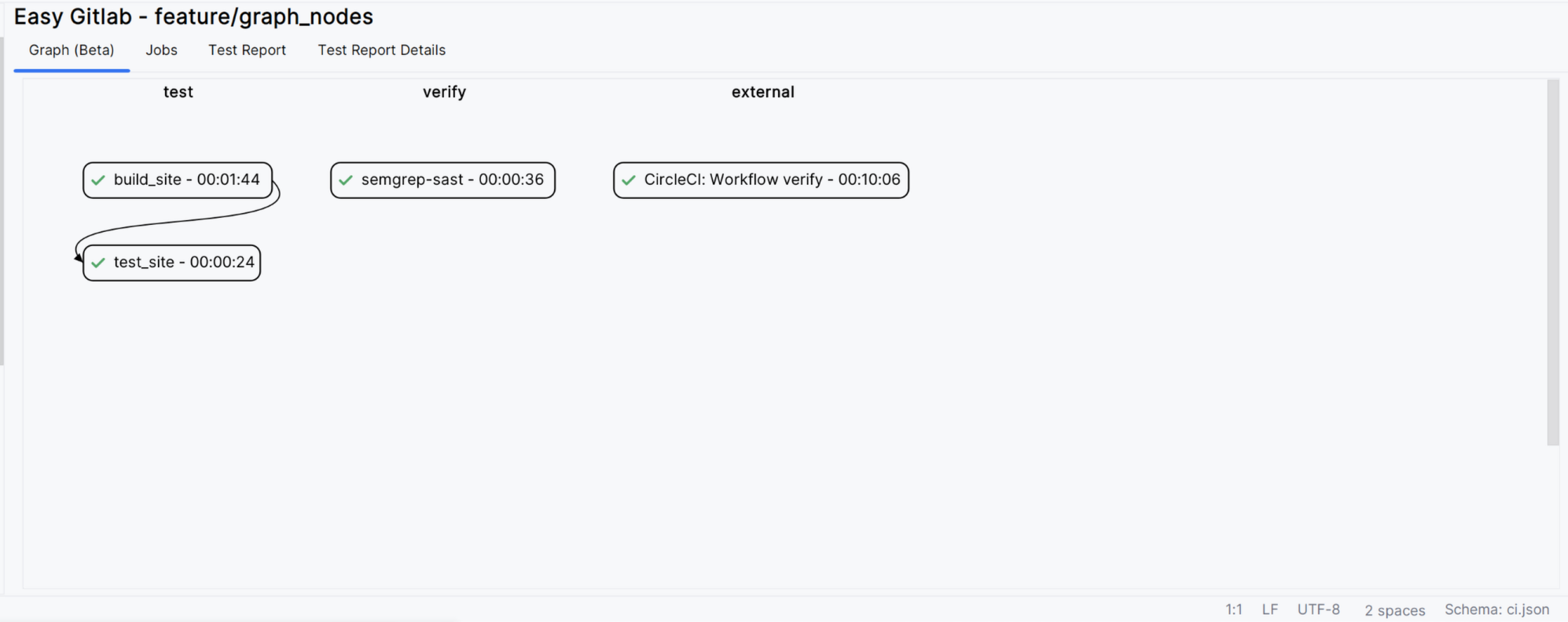
Pipeline Graph
Easy Gitlab plugin allows to display the pipeline graph, with dependency between task shown
Color scheme & Themes
The colors of the jobs in the graph are tested with the default light and dark themes in Intellij, but there is no assurance that the color are correct and consistent on any possible themes. Some color are directly defined, because find an
Features
Most of the table features are available in the graph view, mainly see Job Action.
Test reports
If the job has a test report, you can open it by clicking on the test report icon. In case of failing test the plugin allows to jump to the test and display the output of the test.
Notification
You can enable/disable pipeline notification in the settings. See the Configuration section for more details.
Additional Notes
By using these features, you can effectively manage your GitLab pipelines and jobs directly within IntelliJ, streamlining your development workflow.