Merge Request
Create a Merge Request
The Easy GitLab plugin simplifies the process of creating Merge Requests (MRs) directly within IntelliJ. Here's how you can do it:
Prerequisites:
Merge Request Prerequisites
Ensure you have configured the plugin with your GitLab host, Personal Access Token, and Project ID. See the Configuration page for details.
You must have a local branch with changes you want to merge.
The branch must be pushed to the remote repository.
Open the Merge Request Tab
Locate the "Easy Gitlab" tool window in IntelliJ. If it's not visible, you can open it via .
In the Easy Gitlab tool window, click on the "Merge" tab.
Click the green merge request icon in the toolbar of the Merge Request tab. This will open the "Create Merge Request" dialog.
Alternatively, you can use the shortcut: Ctrl+Alt+M.
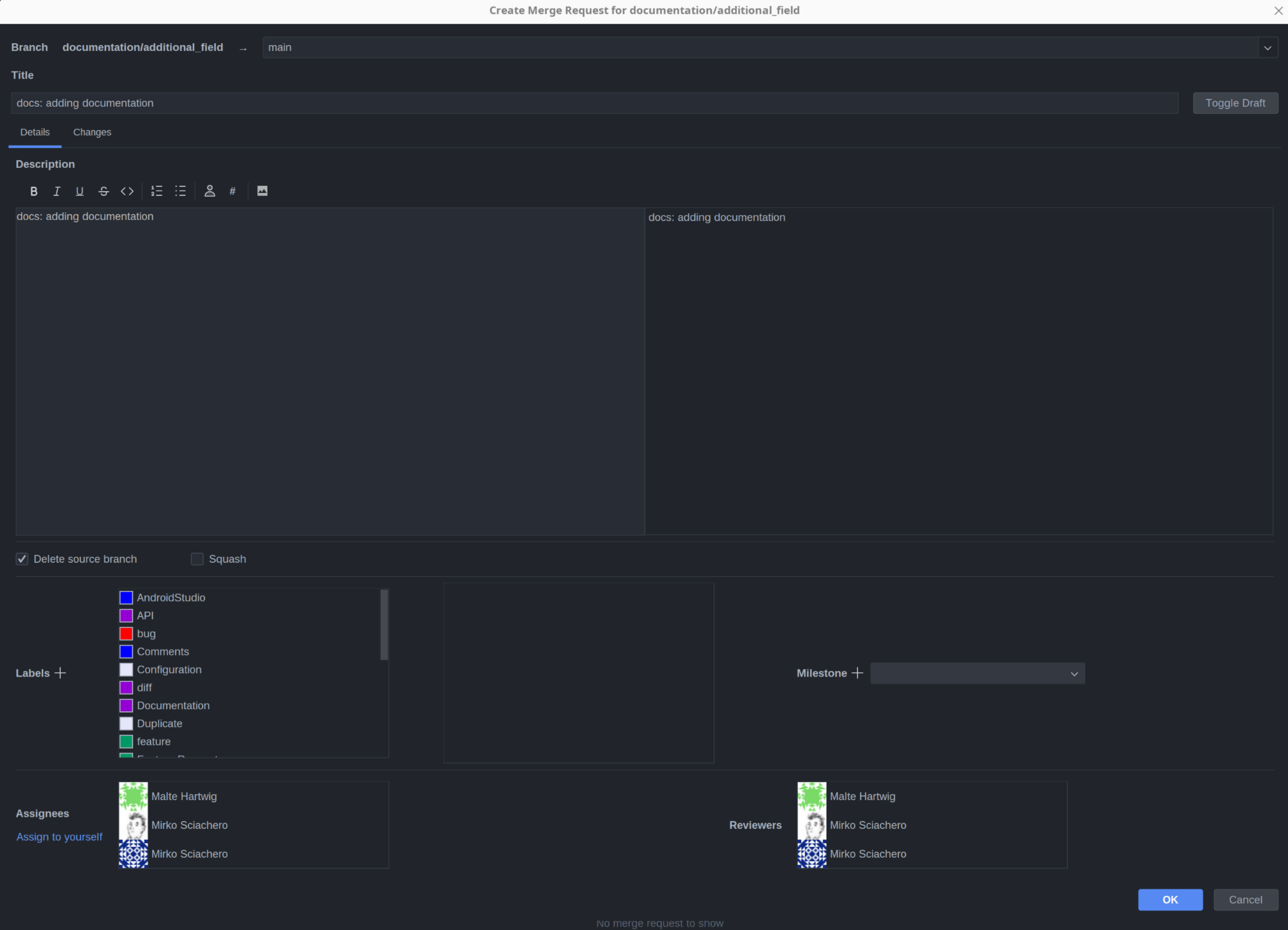
In the dialog, choose the target branch you want to merge your changes into. This is typically
mainordevelopand is preselected with the default branch, but it can be any branch in your project.If you use labels to categorize your MRs, you can add them here. Start typing the label name, and the plugin will suggest existing labels.
If your project uses milestones, you can assign the MR to a specific milestone.
Add a title to your merge request.
Add a description to your merge request.
Assign a reviewer to your merge request.
Assign an assignee to your merge request.
The dialog will display the changes you're proposing to merge. You can review the diffs directly in the dialog.
Click the "Create" button. The plugin will create the MR on GitLab, and you'll see it appear in the Merge Request list in the plugin.
Additional Info
- Draft MRs
The plugin doesn't support the creation of draft MRs.
- Multi-Repo Projects
As mentioned in the Home documentation, the plugin is designed for single-repository projects. Creating MRs in multi-repo setups is not supported.
- Shortcut
The shortcut Ctrl+Alt+M can be used to open the create merge request dialog.
Troubleshooting
If you encounter any errors, double-check your plugin configuration.
Ensure that your local branch is pushed to the remote repository.
Verify that you have the necessary permissions in GitLab to create MRs.
You cannot create a merge request on the default branch
By following these steps, you can seamlessly create Merge Requests from within IntelliJ, streamlining your development workflow.
Reviewing Merge Requests
The Easy GitLab plugin provides a powerful way to review Merge Requests (MRs) directly within IntelliJ, allowing you to examine code changes and provide feedback through comments. This section will guide you through the process of reviewing MRs using the diff view and commenting features.
Accessing the Diff View
Open the Merge Request Tab: In IntelliJ, open the "Easy Gitlab" tool window ().
Select a Merge Request: Navigate to the "Merge Request" tab and select the MR you want to review.
View Changed Files: The MR details will display a list of files that have been modified in the MR.
Open the Diff View
Double-click on a file in the list to open the diff view for that file.
Right-click on a file and select "Show Diff" from the context menu.
Click on the file name.
Click on the diff icon in the merge request table.
Navigating the Diff View
The diff view shows you the changes made to a file, with the original version on the left and the modified version on the right.
- Added Lines
Lines that have been added are highlighted in green.
- Removed Lines
Lines that have been removed are highlighted in red.
- Modified Lines
Lines that have been changed are highlighted with a combination of red and green.
- Navigation Arrows
Use the up and down arrows in the gutter to jump between changes.
- Show Diff
Click on the diff icon in the gutter to show the diff of the current line.
- Show Diff with previous version
Click on the diff icon in the gutter and select "Show Diff with previous version" to show the diff with the previous version of the file.
- Show Diff with current version
Click on the diff icon in the gutter and select "Show Diff with current version" to show the diff with the current version of the file.
Adding Comments
You can add comments directly to specific lines of code within the diff view.
Adding Comments
Click on the line number in the gutter where you want to add a comment.
Open the Comment Dialog:
Right-click on the line number and select "Add Comment" from the context menu.
Click on the comment icon in the gutter.
Use the shortcut to add a comment.
A comment dialog will appear. Type your comment in the text area.
Click the "Comment" button to submit your comment.
Click on the line number and add a comment.
Click on the diff icon and add a comment.
Click on the "Add comment" button in the merge request view.
Managing Comments
- Viewing Comments
Comments are displayed inline in the diff view, next to the line they refer to.
- Replying to Comments
Click the "Reply" button on a comment to add a reply.
- Editing Comments
Click the "Edit" button (pencil icon) on your own comment to modify it.
- Deleting Comments
Click the "Delete" button (trash can icon) on your own comment to remove it.
- Resolving Discussions
If a comment thread has been addressed, click the "Resolve" button to mark the discussion as resolved.
- Reopen a discussion
If a comment thread has been resolved, but you want to reopen it, click the "Reopen" button.
- Show Diff for comment
Click on the diff icon in the comment to show the diff for the comment.
- Jump to comment
Click on the jump icon in the comment to jump to the comment in the code.
- Show resolved comments
By default resolved comments are not shown in the diff pane, but is possible to enable it in the settings.
Commenting on the Entire Merge Request
In addition to line-specific comments, you can also add general comments to the entire MR.
Merge request comments
Navigate to the "Merge Request" tab and select the MR.
Click the "Add comment" button in the merge request view.
Type your comment in the text area.
Click the "Comment" button to submit your comment.
Additional Notes
- Real-Time Updates
Comments are updated in real-time, so you can see new comments as they are added by other reviewers.
- Show comments in editor
Is possible to enable/disable the possibility to have a notification in the editor that there is a comment at a specific line.
By using these features, you can effectively review Merge Requests, provide feedback, and collaborate with your team directly within IntelliJ.
Merge request images
Image retrieval API was added in 17.2 version, the one before rely on authentication on browser and doesn't support API tokens. This make image in MR and comments available in reliable way only on 17.2, version before only works for public images.